Create a CRUD HTTP API with Lambda and DynamoDB - Part1
December 29, 2025 by Anuraj
AWS Lambda
In this blog post series, we’ll explore how to create a CRUD application using Http API with Lambda and DynamoDB. This is multipart blog post. In this blog post we will create a lambda, how to test and debug it. To get started we will be installing AWS Lambda project templates and AWS Lambda tools.
We can first install the templates using AWS Templates using the following command dotnet new install Amazon.Lambda.Templates. Once it is installed, we can create Lambda function using the following command dotnet new lambda.EmptyFunction --name TodoApi. This will create TodoApi folder with src and test folder. We will be using Api Gateway instead of exposing the AWS Lambda directly. So we need to modify the Lambda function to use APIGatewayHttpApiV2ProxyRequest and APIGatewayHttpApiV2ProxyResponse instead of simple string. To use these classes, we need to add the reference of Amazon.Lambda.APIGatewayEvents. We can do this using the following command dotnet add package Amazon.Lambda.APIGatewayEvents. And we can modify the code like this.
using Amazon.Lambda.APIGatewayEvents;
using Amazon.Lambda.Core;
[assembly: LambdaSerializer(typeof(Amazon.Lambda.Serialization.SystemTextJson.DefaultLambdaJsonSerializer))]

namespace TodoApi;

public class Function
{
    public async Task<APIGatewayHttpApiV2ProxyResponse> FunctionHandler
        (APIGatewayHttpApiV2ProxyRequest request, ILambdaContext context)
    {
        var method = request.RequestContext.Http.Method;
        var body = request.Body;

        context.Logger.LogInformation($"Received {method} request with body: {body}");

        return new APIGatewayHttpApiV2ProxyResponse
        {
            StatusCode = 200,
            Body = "Hello from Lambda!",
            Headers = new Dictionary<string, string> { { "Content-Type", "application/json" } }
        };
    }
}
This function will return a Hello from Lambda! message with Status code 200 and application/json content type.
To test the Lambda function we need the Mock Lambda Test Tool. We need to install using the following command dotnet tool install -g Amazon.Lambda.TestTool-8.0. Next we can run the dotnet lambda-test-tool-8.0 in the Lambda function folder. Once it is executed, it will launch the AWS .NET 8.0 Mock Lambda Test Tool in the default browser. In the screen, it will show something like this.
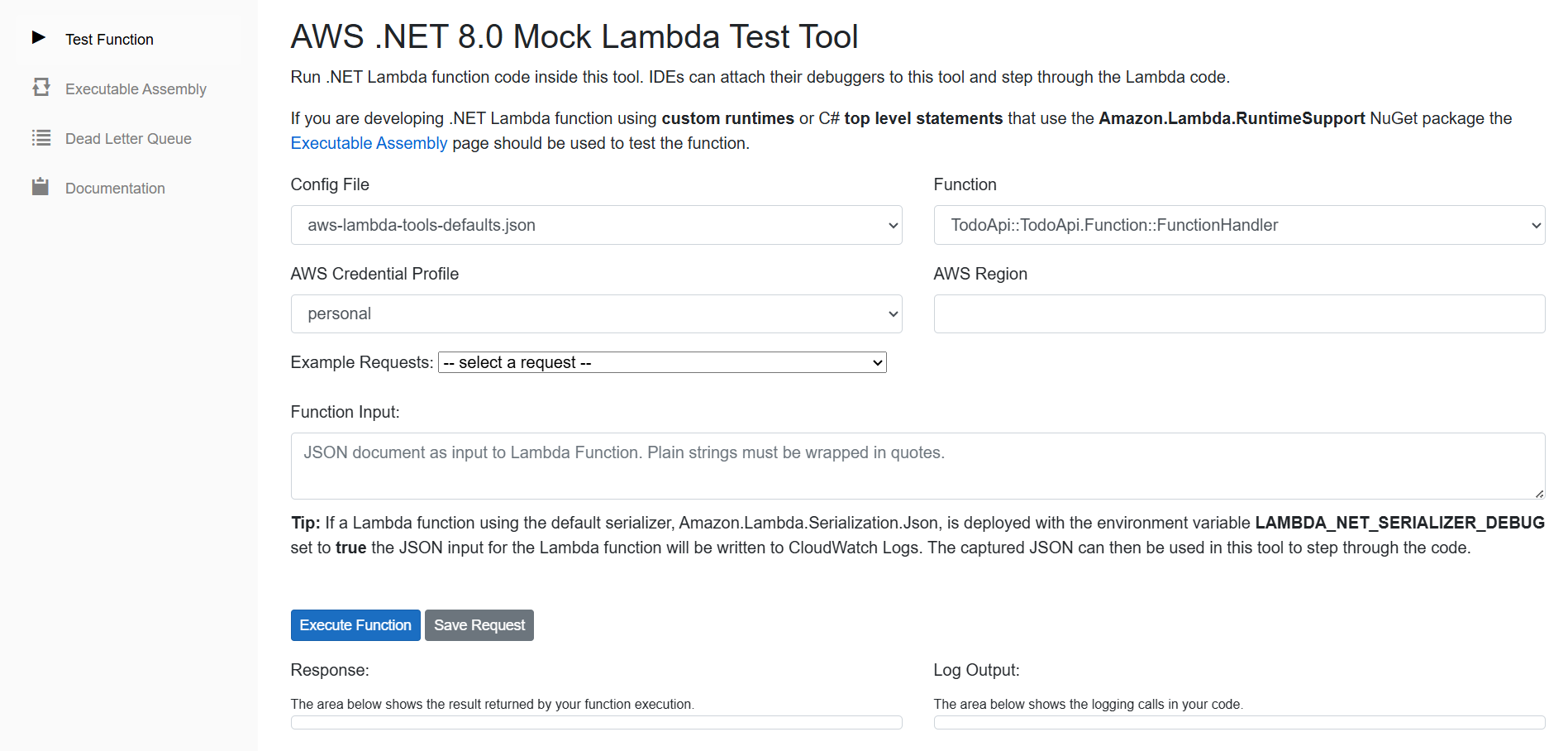
To do the testing, we can select the Example Requests dropdown list and choose API Gateway V2 HTTP API. Then click on the Execute Function button, which will execute the Lambda function and show the response in the Response area, we will be able see the Log Output as well.

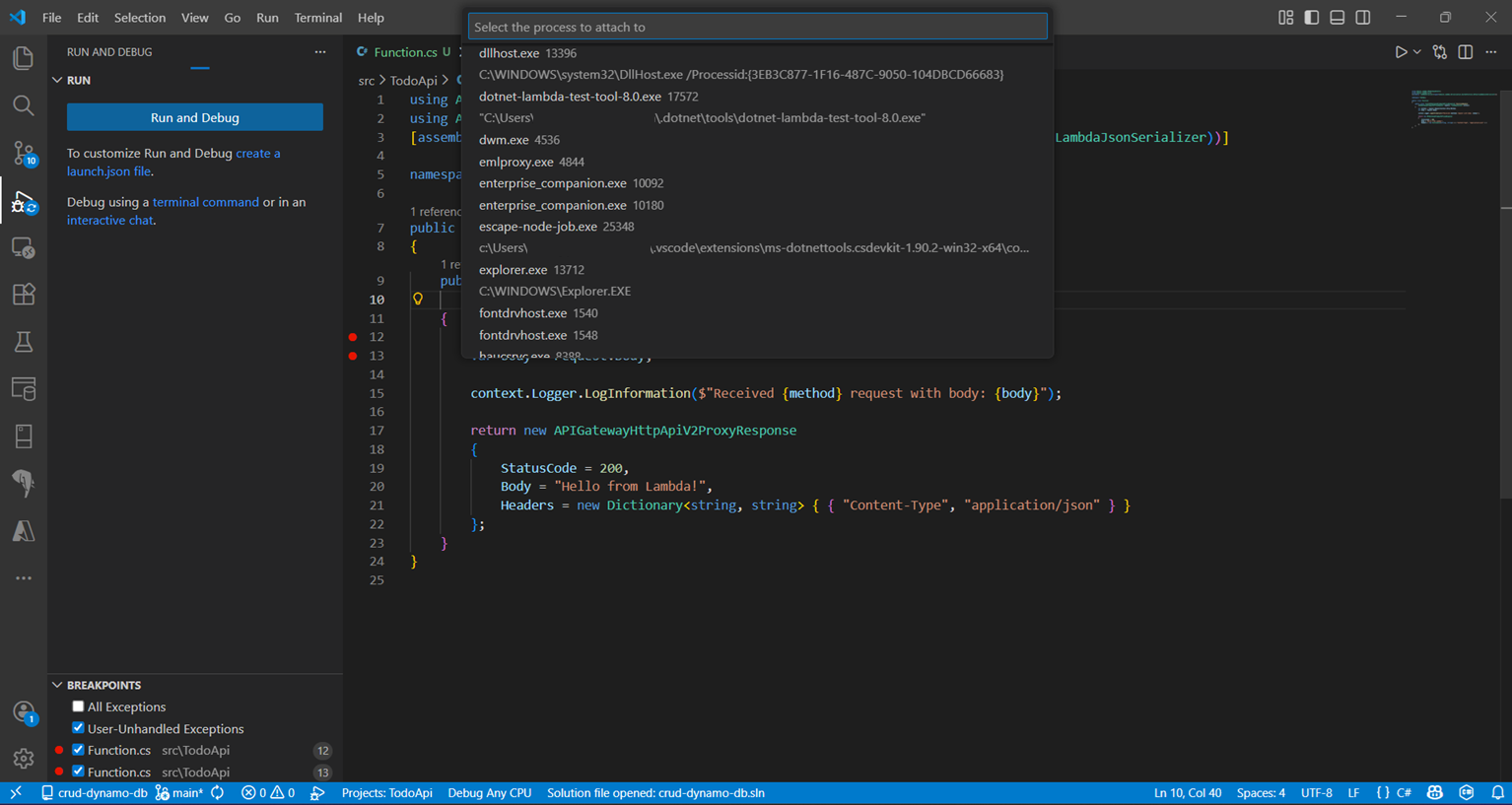
We can debug the function using VS Code and the mock lambda test tool. We can run the application, then attach the process - dotnet-lambda-test-tool-8.0.exe from the list of processes. Then once it is attached, put a breakpoint and execute the function again - now VS Code will pause the execution on the break point and we can explore the variables and values.
Another way to introduce the launch.json file. Create a folder .vscode in the project root, and inside that create a JSON file launch.json file, paste the following content - this configuration is for Windows. Other operating systems change the environment variables and other escape characters. Also change the path to the C# project file.
{
    "version": "0.2.0",
    "configurations": [
        {
            "name": ".NET Core Launch (console)",
            "type": "coreclr",
            "request": "launch",
            "program": "${env:USERPROFILE}\\.dotnet\\tools\\dotnet-lambda-test-tool-8.0.exe",
            "preLaunchTask": "dotnet: build",
            "args": [],
            "cwd": "${workspaceFolder}/src/TodoApi",
            "console": "internalConsole",
            "stopAtEntry": false,
            "internalConsoleOptions": "openOnSessionStart"
        }
    ]
}
Now we can debug the Lambda function like any other C# application. Here is the screenshot of the app, debugging in VS Code.
This way we can create and debug AWS Lambda functions locally with different tools and VS Code. In the next blog post, we will explore how to connect with DynamoDb and perform CRUD operations.
Happy Programming.
If you find my content helpful, consider supporting my work. Your support helps me continue creating valuable resources for the community.

Found this useful? Share it with your network!
Copyright © 2025 Anuraj. Blog content licensed under the Creative Commons CC BY 2.5 | Unless otherwise stated or granted, code samples licensed under the MIT license. This is a personal blog. The opinions expressed here represent my own and not those of my employer. Powered by Jekyll. Hosted with ❤ by GitHub