Working with AI Chat Template - Creating a Sales Copilot
March 05, 2026 by Anuraj
dotnet AI
In this blog post, we will learn about creating a Sales Copilot - which helps Sales people to answer questions about various documents. I will be using the dotnet AI chat template for this. We will be creating it and customizing it.
To create the application we need AI Chat Template, if not installed, we can install it using following command dotnet new install Microsoft.Extensions.AI.Templates. Once it is installed we can create new project using dotnet new aichatweb command. For this, I am planning to use local LLMs, .NET Aspire for Orchestration and Qdrant as vector database.
So here is the command dotnet new aichatweb --provider Ollama --name SalesCopilot --aspire --vector-store Qdrant. It will create the project with .NET Aspire support. Here is the AppHost.cs created.
var builder = DistributedApplication.CreateBuilder(args);

var ollama = builder.AddOllama("ollama")
    .WithDataVolume();
var chat = ollama.AddModel("chat", "llama3.2");
var embeddings = ollama.AddModel("embeddings", "all-minilm");

var vectorDB = builder.AddQdrant("vectordb")
    .WithDataVolume()
    .WithLifetime(ContainerLifetime.Persistent);

var markitdown = builder.AddContainer("markitdown", "mcp/markitdown")
    .WithArgs("--http", "--host", "0.0.0.0", "--port", "3001")
    .WithHttpEndpoint(targetPort: 3001, name: "http");

var webApp = builder.AddProject<Projects.SalesCopilot_Web>("aichatweb-app");
webApp
    .WithReference(chat)
    .WithReference(embeddings)
    .WaitFor(chat)
    .WaitFor(embeddings);
webApp
    .WithReference(vectorDB)
    .WaitFor(vectorDB);
webApp
    .WithEnvironment("MARKITDOWN_MCP_URL", markitdown.GetEndpoint("http"));

builder.Build().Run();
We need Docker to run the app, since the project is using Qdrant vector database and markitdown for processing the PDF files. This app is capable to processing markdown and PDF files. By default it comes with two files Example_Emergency_Survival_Kit.pdf and Example_GPS_Watch.md, we can find these files under Data folder in wwwroot folder in the Web project. We can run the project using dotnet run command like this - dotnet run --project SalesCopilot.AppHost. Once it started running, we can click on the URL and view the Aspire Dashboard.
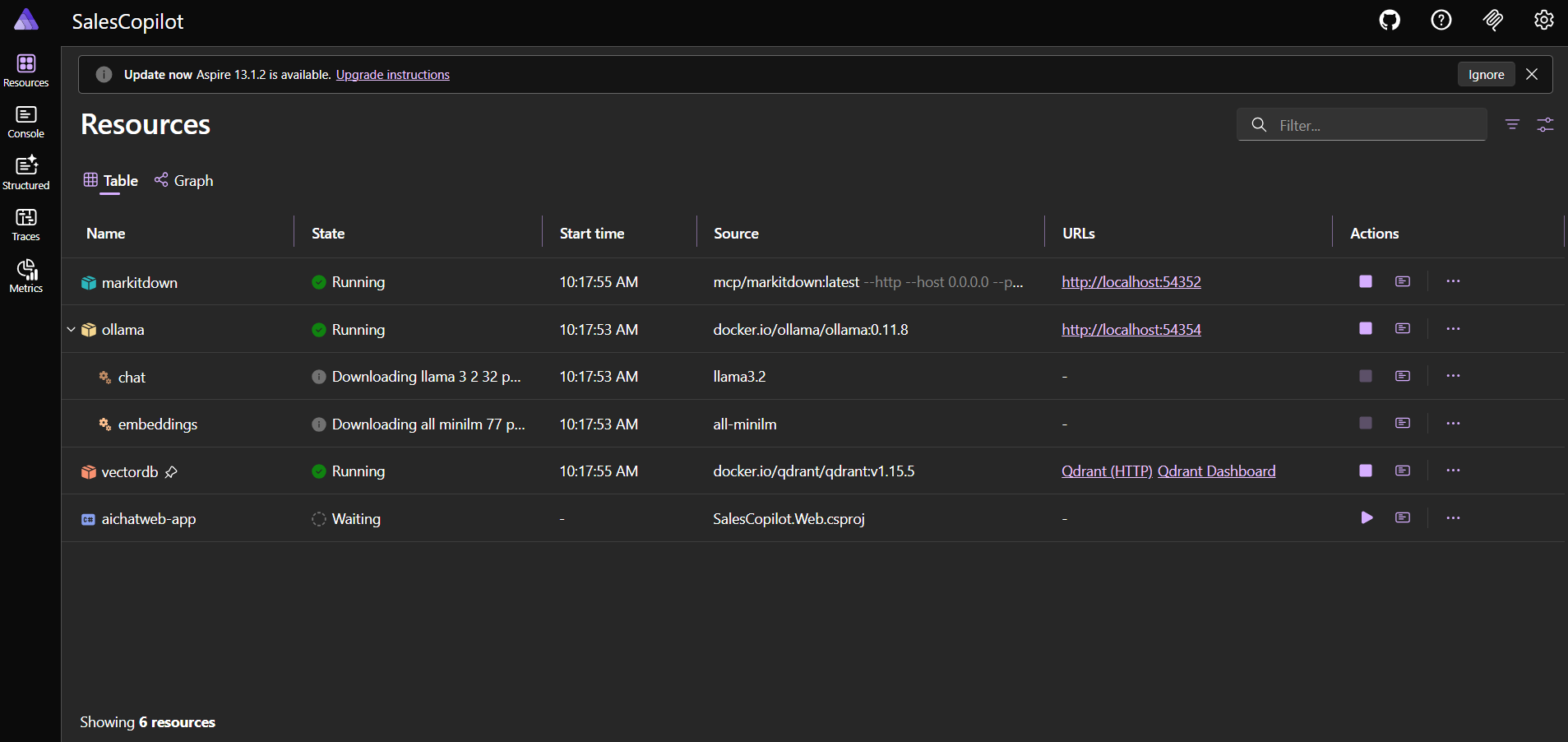
It will take some time to download the Ollama and Qdrant docker images, then it will download the llama3.2 and all-minilm - Ollama models for chat and embeddings. Once everything is ready, we will be able to access the web app URL. The web app looks like this.
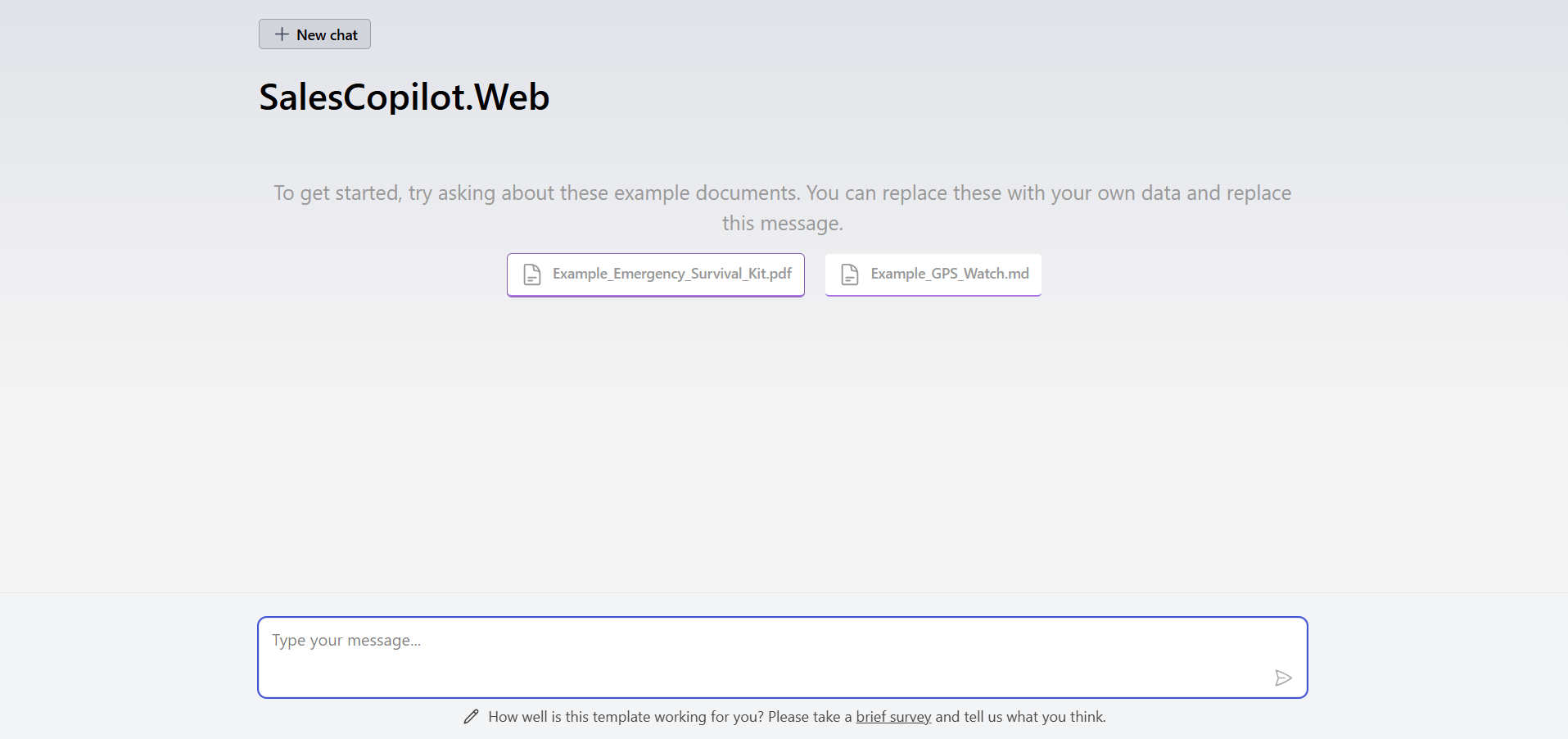
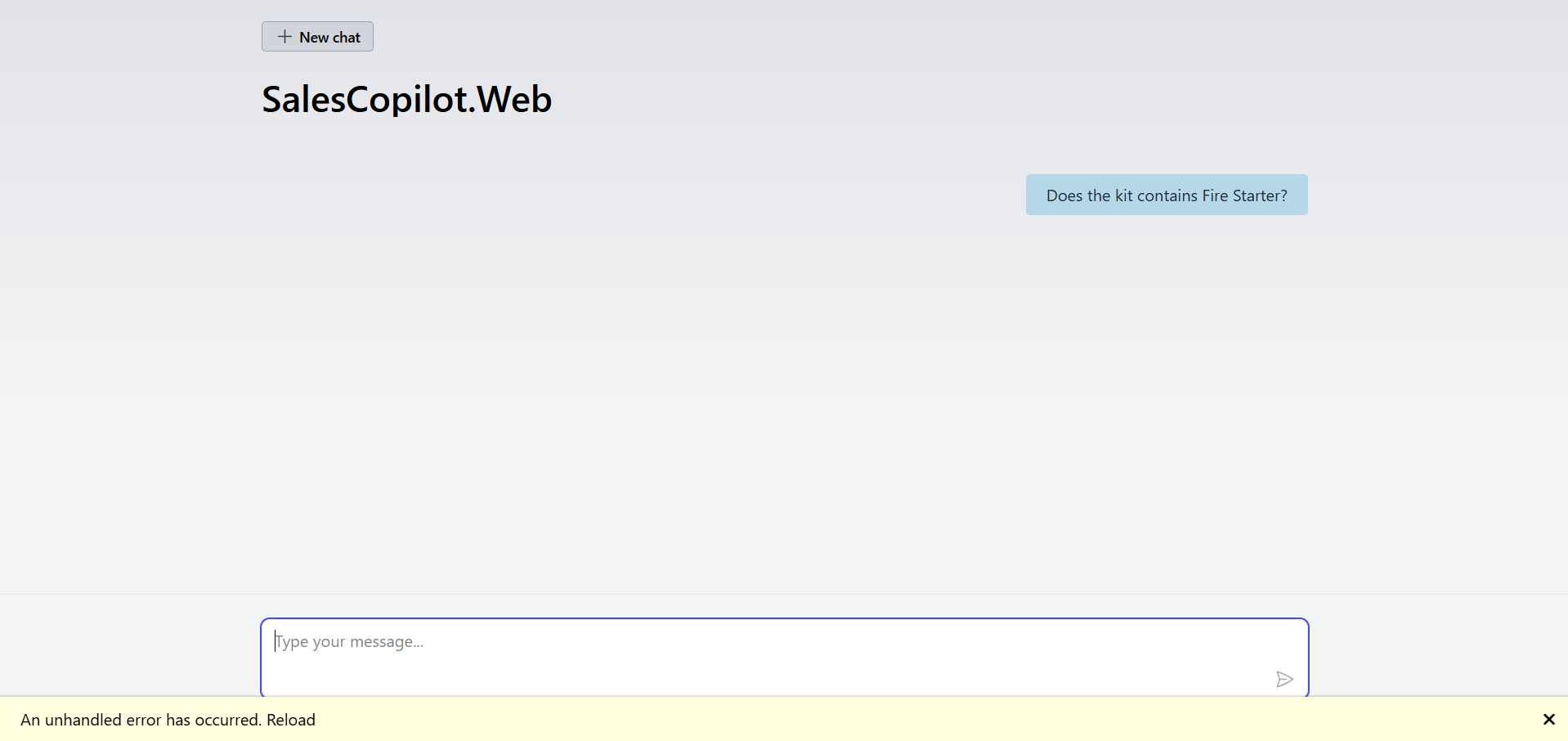
Now we can ask questions about the two documents. When I tried it first time, I faced an issue like this.
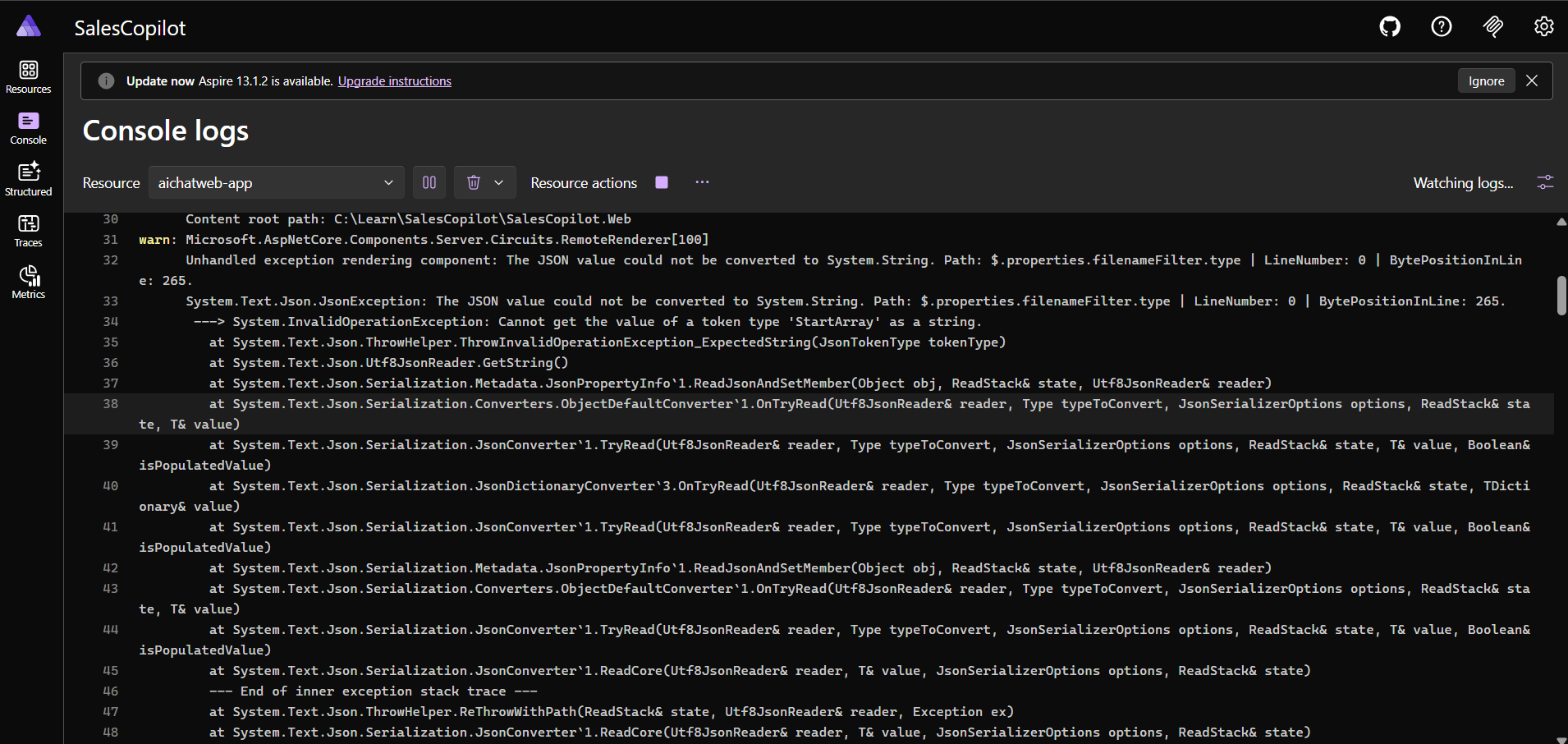
I looked into the Aspire dashboard and I found a JsonException - The JSON value could not be converted to System.String. Path: $.properties.filenameFilter.type | LineNumber: 0 | BytePositionInLine: 265. ---> System.InvalidOperationException: Cannot get the value of a token type 'StartArray' as a string.
Here is the screenshot of the Aspire Console.
I tried the same project template with different model providers like GitHub Models or Azure Open AI, but this issue was not there. And I couldn’t find any Github issue as well related to this. I spent some time and I found the issue - thanks to GitHub Copilot. It is something related to serialization of optional parameters in one of the tools implementation. So to fix this issue, I had to modify the chat.razor file - the SearchAsync method. It was something like this
[Description("Searches for information using a phrase or keyword. Relies on documents already being loaded.")]
private async Task<IEnumerable<string>> SearchAsync(
    [Description("The phrase to search for.")] string searchPhrase,
    [Description("If possible, specify the filename to search that file only. If not provided or empty, the search includes all files.")] string? filenameFilter = null)
{
    await InvokeAsync(StateHasChanged);
    var results = await Search.SearchAsync(searchPhrase, filenameFilter, maxResults: 5);
    return results.Select(result =>
        $"<result filename=\"{result.DocumentId}\">{result.Text}</result>");
}
I modified it like this.
[Description("Searches for information using a phrase or keyword. Relies on documents already being loaded.")]
private async Task<IEnumerable<string>> SearchAsync(
    [Description("The phrase to search for.")] string searchPhrase,
    [Description("If possible, specify the filename to search that file only. If not provided or empty, the search includes all files.")] string filenameFilter = "")
{
    await InvokeAsync(StateHasChanged);
    var results = await Search.SearchAsync(searchPhrase, filenameFilter, maxResults: 5);
    return results.Select(result =>
        $"<result filename=\"{result.DocumentId}\">{result.Text}</result>");
}
I removed the nullable parameter decoration from filenameFilter argument and set the default value as empty string. Now run the application again and browse the web app URL and it will start working.
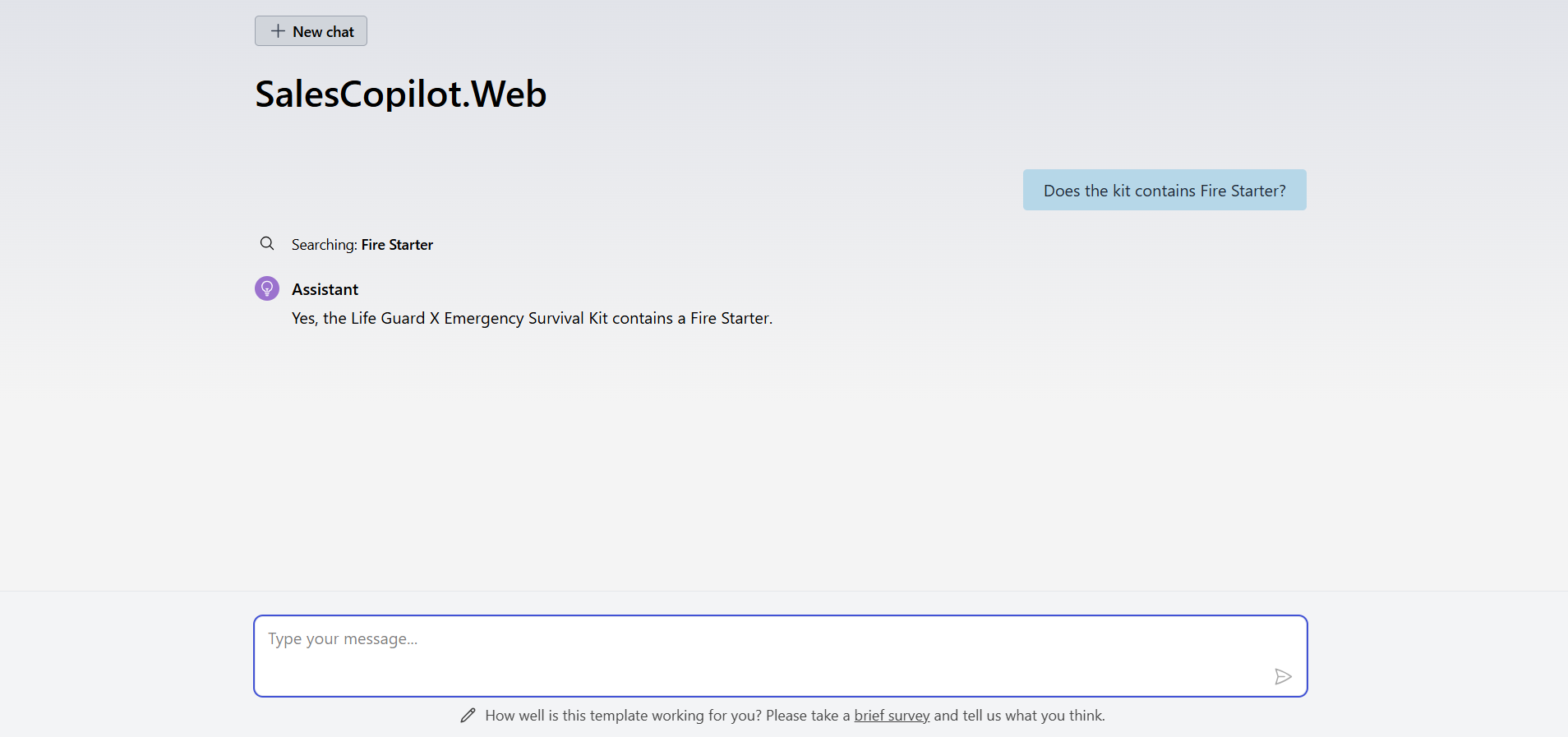
This way we can start building a Sales Copilot which helps sales people to ask questions about various documents. In the next blog post, we will modify code to support other types of documents like Microsoft Word and Powerpoint documents.
Happy Programming
If you find my content helpful, consider supporting my work. Your support helps me continue creating valuable resources for the community.

Found this useful? Share it with your network!
Copyright © 2026 Anuraj. Blog content licensed under the Creative Commons CC BY 2.5 | Unless otherwise stated or granted, code samples licensed under the MIT license. This is a personal blog. The opinions expressed here represent my own and not those of my employer. Powered by Jekyll. Hosted with ❤ by GitHub