Spec-Driven Development with OpenSpec
September 19, 2026 by Anuraj
dotnet sdd openspec
In this blog post, we will explore Spec-Driven Development with OpenSpec. OpenSpec is a lightweight Spec-Driven Development (SDD) framework designed for AI coding assistants. It treats specifications as the source of truth by storing design specs directly in your project repository, keeping them available for future changes.OpenSpec included skills handle much of the work, while the CLI guides you through the process. Once we’ve implemented a change and updated its specifications, our project no longer depends on OpenSpec. This makes it easy to move away from the framework later—without lock-in.
We will be using the default OpenSpec workflow - Explore(optional) > Propose > Apply > Archive
To get started we need to install OpenSpec, we can use the npm install -g @fission-ai/openspec@latest command. Once installed we can run the openspec --version command.
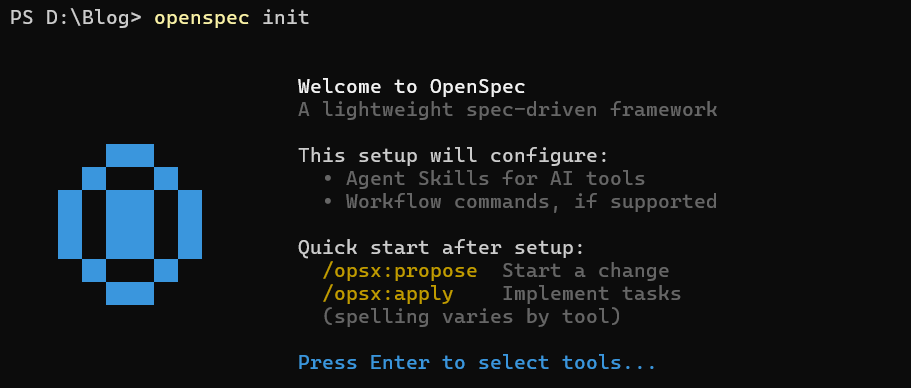
Next we need to run the openspec init command, which initializes the open spec skills and prompts based on the selected AI Assistant. When we run the command, it will display the welcome screen, we need to press the enter key to select AI coding assistant.
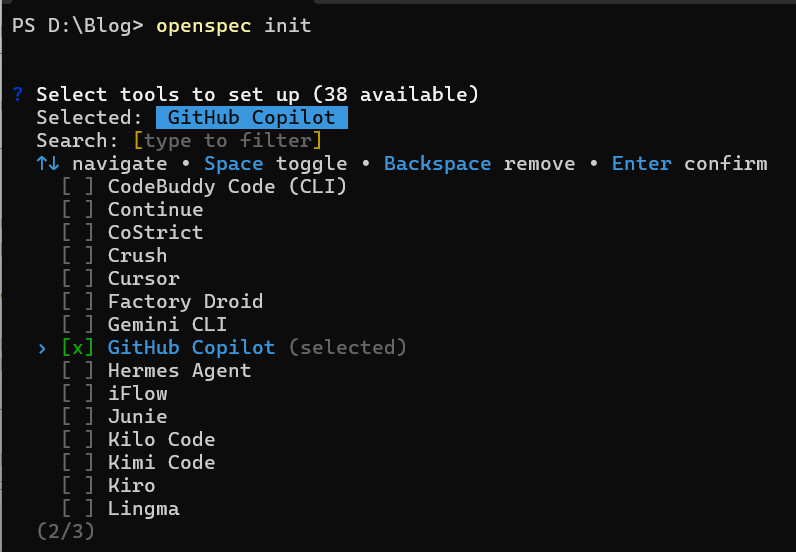
When we press the enter key, it will display a list of AI Assistants - OpenSpec supports 40 AI assistants. For this blog post, I am using GitHub Copilot. We need to select the GitHub Copilot option from the list.
For GitHub Copilot, it will prompt for one more option - Set up GitHub Copilot cloud coding-agent files? This is for the GitHub-hosted Copilot coding agent (github.com), not Copilot in your editor. It writes two files: .github/workflows/copilot-setup-steps.yml and .github/agents/openspec.agent.md. - I am using locally using VS Code, so I am providing the response as No. This will create the skills and prompt files to the location.
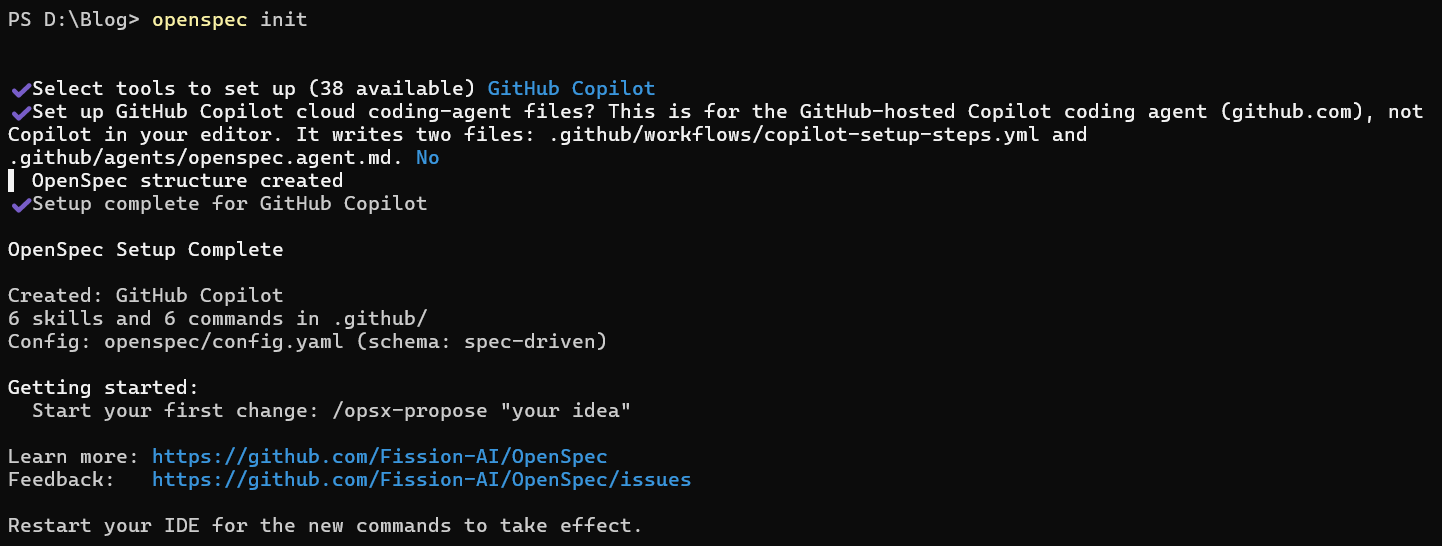
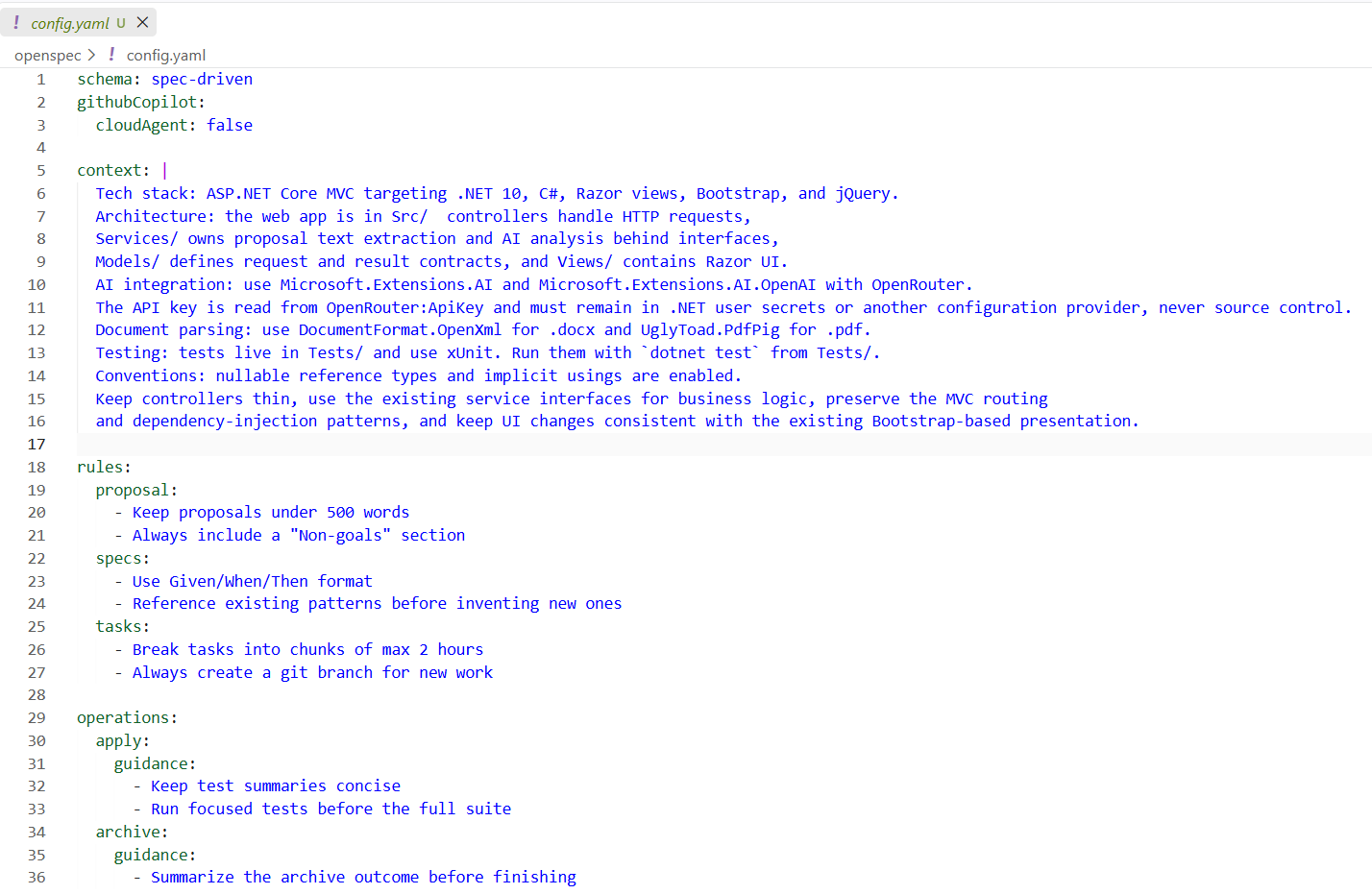
Next we can run the /opsx commands to get started. We can modify the config.yaml - which will help us to provide the project context and other configuration options, like tech stack and conventions.
Here is an example of config.yaml file which provides project configuration for an ASP.NET Core MVC project.
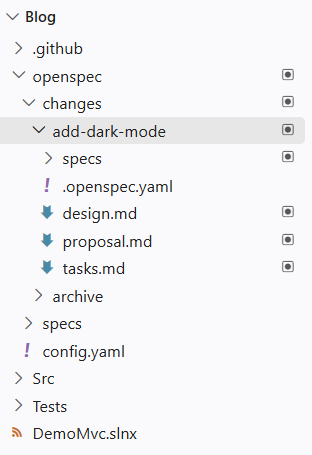
Next we can start building using opsx:propose command. We will be building a simple dark mode toggle option for the default MVC app. I am using the same command as the openspec documentation. We can execute the /opsx-propose add-dark-mode command. Based on the copilot settings, copilot may prompt for various inputs and commands. This command will create a plan for this feature. Once it is completed, we will be able to see few new files proposal.md,dark-mode/spec.md,design.md and tasks.md. We can refine these markdown files based on the requirements, for this blog post, I am not updating anything.
Here is the updated files / directory structure of the project.
To implement this feature, we can execute the command /opsx-apply. Again Copilot will ask for the confirmations on building the feature. Once it is done, we need to archive the feature using /opsx-archive command.
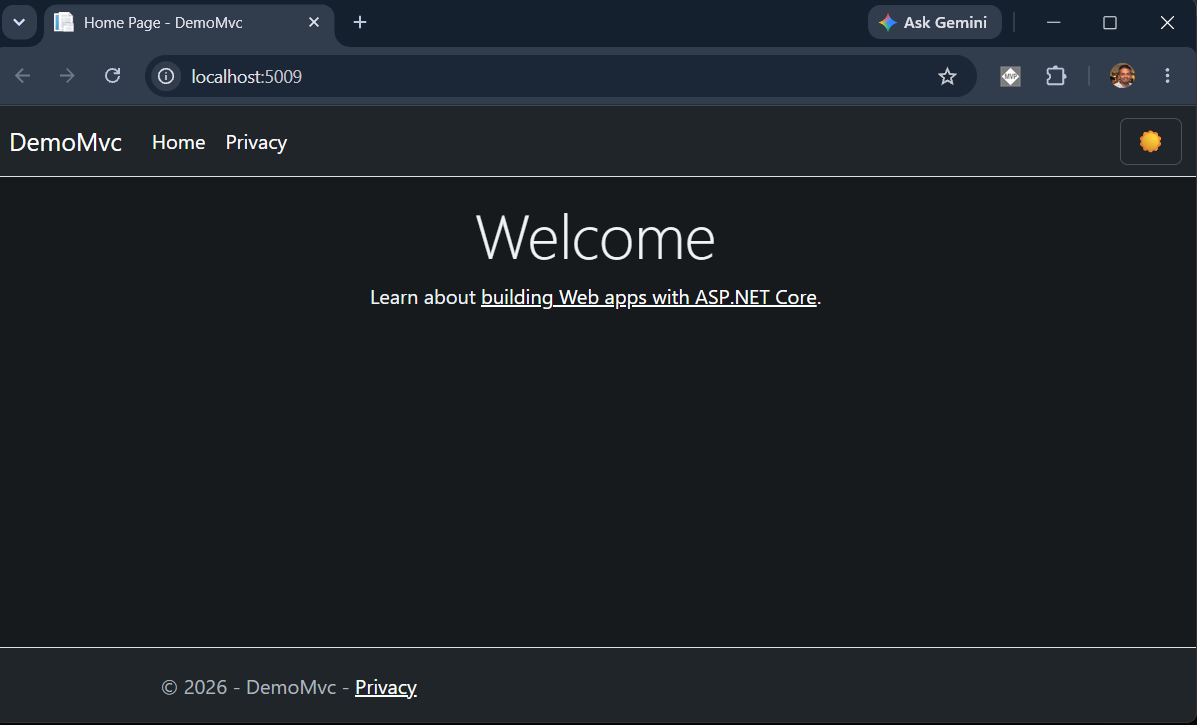
Here is the app with Dark mode feature implemented using OpenSpec.
We can modify the delivery and workflows using openspec config profile command. Customize the Deliveryoption is where workflows are installed (skills, commands, or both) and Workflows is which actions are available (propose, explore, apply, etc.). We can find more details about OpenSpec https://github.com/Fission-AI/OpenSpec
Kickstart specification‑driven development to boost code quality, accelerate teamwork, and speed up delivery. Pick the right framework, start small, and scale your specs with confidence.
Happy Programming.
If you find my content helpful, consider supporting my work. Your support helps me continue creating valuable resources for the community.

Found this useful? Share it with your network!
Copyright © 2026 Anuraj. Blog content licensed under the Creative Commons CC BY 2.5 | Unless otherwise stated or granted, code samples licensed under the MIT license. This is a personal blog. The opinions expressed here represent my own and not those of my employer. Powered by Jekyll. Hosted with ❤ by GitHub